RTSP で画像を取得する (c++/Visual Studio)

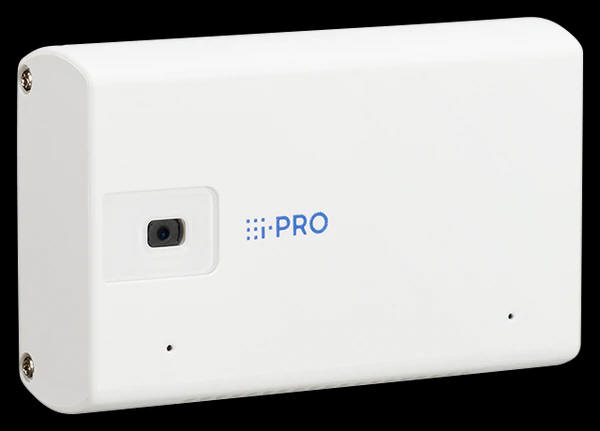
i-PRO の監視カメラ i-PRO mini (WV-S7130W) を入手したので、RTSP(H.264/H.265) で映像取得して遊んでみます。


RTSP (Real Time Streaming Protocol) とは、IETF において標準化された映像(ビデオ)および音声(オーディオ)などのストリーミングデータを制御するためのプロトコルです。1998年に最初の版が "RFC 2326" として、バージョン2.0が2016年に "RFC 7826" として標準化されました。

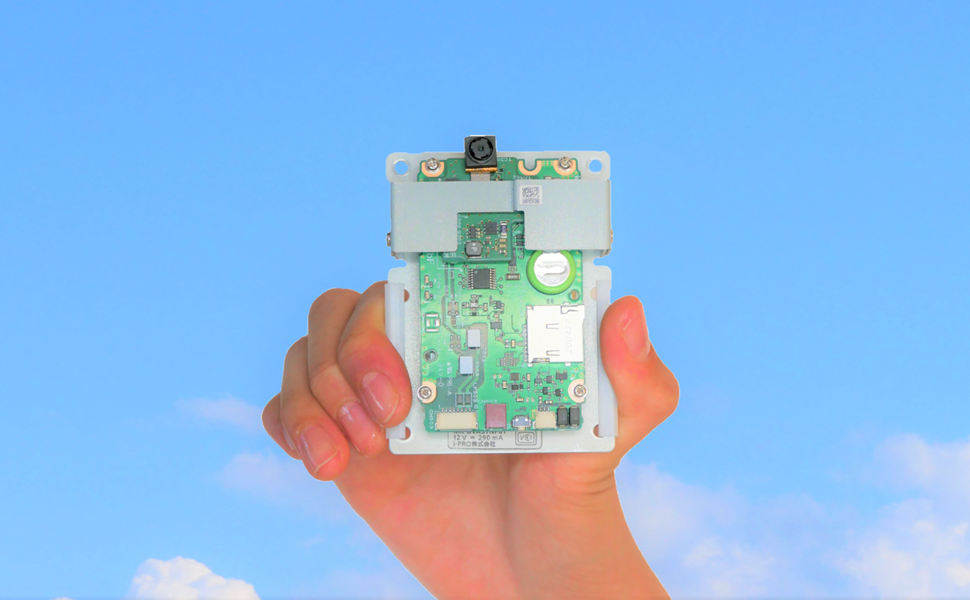
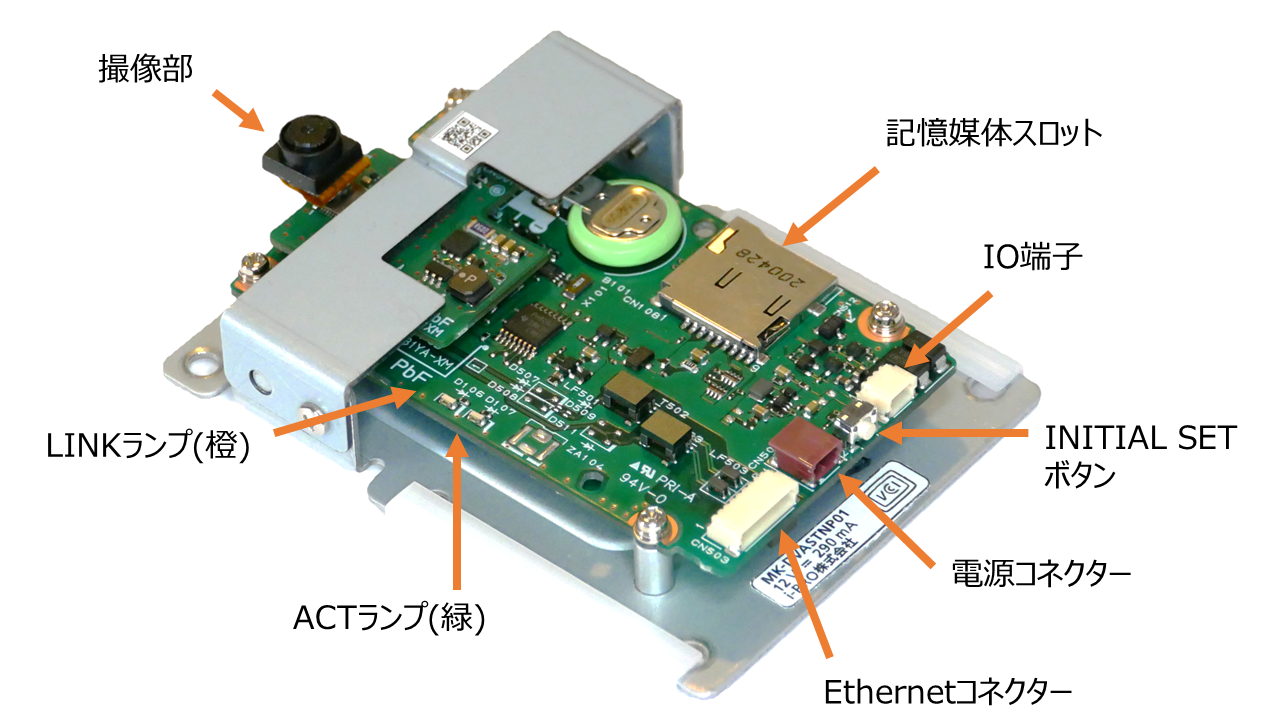
本ページでは、i-PRO カメラとPCを RTSP により接続してPC画面へ表示するプログラムを c++ (Visual Studio) で作成する例を紹介します。とても短いプログラムで i-PRO カメラの映像を見ることができます。動作確認は i-PRO mini (WV-S7130)、モジュールカメラ(AIスターターキット)を使って行いましたが、ほとんどの i-PRO カメラでそのまま利用できるはずです。ぜひお試しください。

Python の記事は こちら を参照ください。


[動画] RTSP でPCと i-PRO カメラを接続して映像表示した様子


"i-PRO mini" 紹介:

i-PRO mini 画像


"モジュールカメラ" 紹介:

AI スターターキット 画像(1) AI スターターキット 画像(2)


カメラ初期設定についてはカメラ毎の取扱説明書をご確認ください。

カメラのIPアドレスを確認・設定できる下記ツールを事前に入手しておくと便利です。


1. RTSP 表記仕様

[概要]

RTSP で接続するための表記を以下に記載します。

「ネットワークカメラCGIコマンドインターフェース仕様書 統合版」[1] で下記に記載されている情報を元に加筆などしています。


i-PRO カメラ

ストリーム(1) rtsp://<user-id>:<user-password>@<カメラのIPアドレス>/MediaInput/stream_1
ストリーム(2) rtsp://<user-id>:<user-password>@<カメラのIPアドレス>/MediaInput/stream_2
ストリーム(3) rtsp://<user-id>:<user-password>@<カメラのIPアドレス>/MediaInput/stream_3
ストリーム(4) rtsp://<user-id>:<user-password>@<カメラのIPアドレス>/MediaInput/stream_4


(例) rtsp://admin:password@192.168.0.10/MediaInput/stream_1


補足: カメラ側の映像圧縮方式設定が H.264/H.265 のいずれの場合も上記で接続できました。


マルチセンサーカメラ(X8570 / S8530)

ストリーム(1) Ch1 (Camera1)/ rtsp://<user-id>:<user-password>@<カメラのIPアドレス>/MediaInput/stream_1
rtsp://<user-id>:<user-password>@<カメラのIPアドレス>/MediaInput/stream_1/ch_1
ストリーム(2) Ch1 (Camera1)/ rtsp://<user-id>:<user-password>@<カメラのIPアドレス>/MediaInput/stream_2
rtsp://<user-id>:<user-password>@<カメラのIPアドレス>/MediaInput/stream_2/ch_1
ストリーム(1) Ch2 (Camera2)/ rtsp://<user-id>:<user-password>@<カメラのIPアドレス>/MediaInput/stream_1/ch_2
ストリーム(2) Ch2 (Camera2)/ rtsp://<user-id>:<user-password>@<カメラのIPアドレス>/MediaInput/stream_2/ch_2
ストリーム(1) Ch3 (Camera3)/ rtsp://<user-id>:<user-password>@<カメラのIPアドレス>/MediaInput/stream_1/ch_3
ストリーム(2) Ch3 (Camera3)/ rtsp://<user-id>:<user-password>@<カメラのIPアドレス>/MediaInput/stream_2/ch_3
ストリーム(1) Ch4 (Camera4)/ rtsp://<user-id>:<user-password>@<カメラのIPアドレス>/MediaInput/stream_1/ch_4
ストリーム(2) Ch4 (Camera4)/ rtsp://<user-id>:<user-password>@<カメラのIPアドレス>/MediaInput/stream_2/ch_4


i-PRO (Panasonic) 従来 model

ストリーム(1) rtsp://<user-id>:<user-password>@<カメラのIPアドレス>/MediaInput/h264/stream_1
ストリーム(2) rtsp://<user-id>:<user-password>@<カメラのIPアドレス>/MediaInput/h264/stream_2
ストリーム(3) rtsp://<user-id>:<user-password>@<カメラのIPアドレス>/MediaInput/h264/stream_3
ストリーム(4) rtsp://<user-id>:<user-password>@<カメラのIPアドレス>/MediaInput/h264/stream_4


(例) rtsp://admin:password@192.168.0.10/MediaInput/h264/stream_1


注意事項


2. i-PRO カメラと RTSP 接続して映像を表示してみる

[概要]

Visual Studio の c++ と OpenCV を使って、PC と i-PRO カメラを RTSP(H.264/H.265) で接続して映像表示してみます。


[評価環境]

コンパイラ : Visual Studio 2022 pro., Version 17.4.3
ライブラリ : OpenCV, 4.6.0
OS : Windows11 home, 22H2


※ "Community edition" でも動作する内容です。


Check

OpenCV のインストール方法、Visual Studio プロジェクトへの設定方法などは下記ページを参考に行ってください。本ページでは説明を割愛します。

OpenCV をインストールする


[プログラム]

サンプルプログラムのソースコードを以下に示します。


[プログラムソース "connect_with_rtsp_1.cpp"]

/*
======================================================================================

[Abstract]
    Try connecting to an i-PRO camera with RTSP.
    RTSP で i-PRO カメラと接続してみる

[Details]
    Let's try first.
    まずはやってみる

[Library install]
    opencv:     You need OpenCV. See "https://i-pro-corp.github.io/Programing-Items/cpp_vs/install_opencv.html"

======================================================================================
*/

#include <iostream>
#include <opencv2/opencv.hpp>
#include <opencv2/core/utility.hpp>


const std::string user_id   = "user_id";         // Change to match your camera setting
const std::string user_pw   = "user_pw";         // Change to match your camera setting
const std::string host      = "192.168.0.10";    // Change to match your camera setting
const std::string winname   = "VIDEO";           // Window title

const std::string url       = "rtsp://" + user_id + ":" + user_pw + "@" + host + "/MediaInput/stream_1";


int main(int argc, const char* argv[])
{
    cv::VideoCapture cap(url);
    cv::Mat frame;
    char ret;

    while (true) {
        cap >> frame;
        if (frame.empty()) {
            break;
        }

        // Please modify the value to fit your PC screen size.
        resize(frame, frame, cv::Size(), 0.5, 0.5);                                     // Setting by magnification.

        // Display video.
        cv::imshow(winname, frame);

        ret = (char)cv::waitKey(1);     // necessary to display the video by cv::imshow().

        // Press the "q" key to finish.
        if (ret == 'q') {
            break;
        }
    }

    cap.release();
    cv::destroyAllWindows();

    return EXIT_SUCCESS;
}


上記プログラムを動かした様子を動画で示します。

こんなに簡単なプログラムでとても快適な映像表示を実現することができました。

[動画] RTSP でPCと i-PRO カメラを接続して映像表示してみた様子


ライセンス

本ページの情報は、特記無い限り下記 MIT ライセンスで提供されます。

The MIT License (MIT)

  Copyright 2023 Kinoshita Hidetoshi

Permission is hereby granted, free of charge, to any person obtaining a copy of this software and associated documentation files (the "Software"), to deal in the Software without restriction, including without limitation the rights to use, copy, modify, merge, publish, distribute, sublicense, and/or sell copies of the Software, and to permit persons to whom the Software is furnished to do so, subject to the following conditions:

The above copyright notice and this permission notice shall be included in all copies or substantial portions of the Software.

THE SOFTWARE IS PROVIDED "AS IS", WITHOUT WARRANTY OF ANY KIND, EXPRESS OR IMPLIED, INCLUDING BUT NOT LIMITED TO THE WARRANTIES OF MERCHANTABILITY, FITNESS FOR A PARTICULAR PURPOSE AND NONINFRINGEMENT. IN NO EVENT SHALL THE AUTHORS OR COPYRIGHT HOLDERS BE LIABLE FOR ANY CLAIM, DAMAGES OR OTHER LIABILITY, WHETHER IN AN ACTION OF CONTRACT, TORT OR OTHERWISE, ARISING FROM, OUT OF OR IN CONNECTION WITH THE SOFTWARE OR THE USE OR OTHER DEALINGS IN THE SOFTWARE.
 

参考


変更履歴

2025/11/17 - 「[1] ネットワークカメラCGIコマンドインターフェース仕様書」 リンク先を更新, 木下英俊
2023/10/20 - IP簡単設定ソフトウェア、IP Setting Software リンク先を更新, 木下英俊
2023/3/1 - 説明および表現を一部更新, 木下英俊
2023/1/18 - 新規作成, 木下英俊


Programming Items トップページ

プライバシーポリシー